Introduction
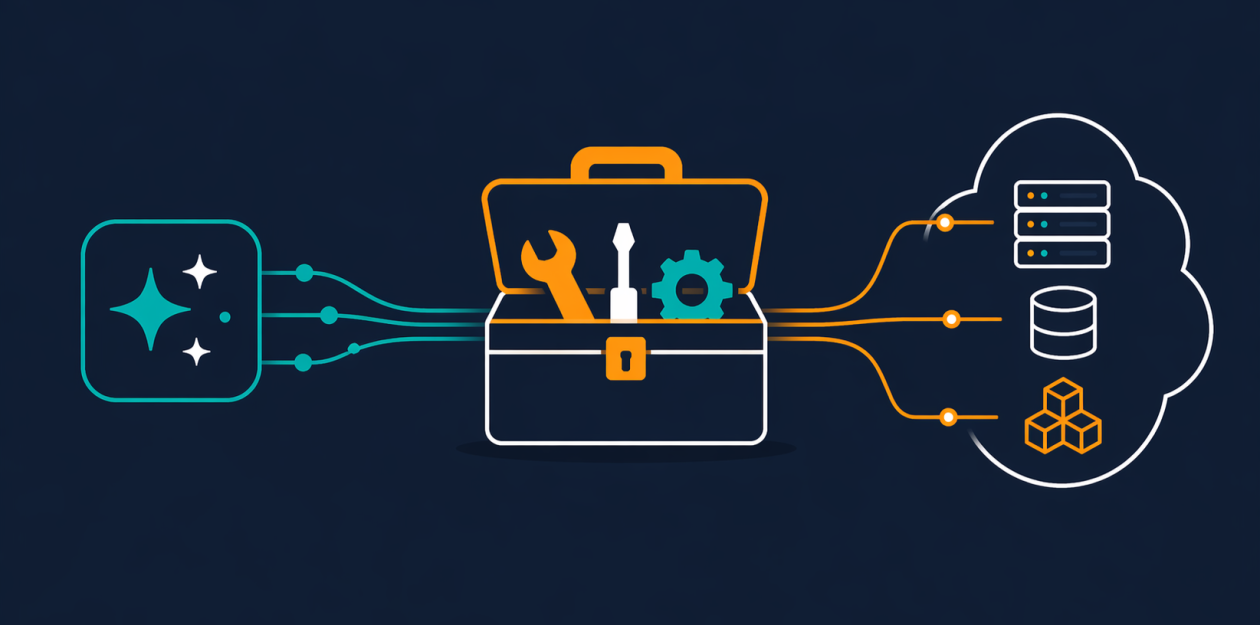
When building AI agents that interact with Amazon Web Services (AWS), one of the biggest challenges is granting them real, authenticated access without compromising your security. The AWS MCP Server, now generally available as part of the Agent Toolkit for AWS, solves this by providing a managed remote Model Context Protocol (MCP) server that gives your AI coding assistants secure, authenticated access to all AWS services through a small, fixed set of tools. This guide walks you through the process of setting up and using the AWS MCP Server so your agents can work with current AWS documentation, execute API calls, and even run custom scripts—all while respecting your IAM permissions and keeping your environment safe.
What You Need
- AWS account with appropriate IAM permissions to create and manage IAM roles and policies.
- An AI coding agent or assistant that supports the Model Context Protocol (MCP), such as certain versions of Claude or custom agents built with the protocol.
- Basic familiarity with AWS CLI, IAM, and your chosen AI agent’s configuration.
- Agent Toolkit for AWS (optional but recommended for skills and plugins).
Step-by-Step Setup Guide
Step 1: Understand the Core Tools
Before you start, familiarize yourself with the three main tools the AWS MCP Server provides:
- call_aws – Executes any of the 15,000+ AWS API operations using your existing IAM credentials. No need for separate permissions.
- search_documentation and read_documentation – Retrieve current AWS documentation and best practices at query time, ensuring your agent always works with up-to-date information.
- run_script – Allows the agent to write short Python scripts that run on the server side in a sandboxed environment. The script inherits your IAM permissions but has no network access, keeping your local system and files safe.
These tools are designed to minimize token usage and avoid consuming your model’s context window, making them ideal for complex, multi-step workflows.
Step 2: Set Up IAM Permissions
To use the AWS MCP Server, you need an IAM role with policies that allow the server to act on your behalf. The server now supports IAM context keys, so you no longer need a separate IAM permission for the server itself. Instead, you can express fine-grained access directly in a standard IAM policy. Follow these steps:
- Create a new IAM role or use an existing one for your AI agent.
- Attach a policy that grants the specific AWS API actions your agent needs (e.g.,
s3:ListBuckets,ec2:DescribeInstances). - Include the
aws:SourceArnandaws:SourceAccountconditions to restrict the server’s usage to your account and agent. - Do not give the role administrative or broad permissions—follow the principle of least privilege.
For documentation retrieval, note that search_documentation and read_documentation do not require authentication, so your agent can fetch docs even with limited IAM policies.
Step 3: Configure the MCP Server Connection
Once your IAM role is ready, you need to connect your AI agent to the AWS MCP Server. Depending on your agent, you’ll either:
- Use a client library that supports MCP (e.g., a custom integration in Python or TypeScript).
- Configure the agent’s settings to point to the AWS MCP Server endpoint (provided by AWS after provisioning the server).
During configuration, ensure you specify the role ARN and any region constraints. The server will use your credentials to make calls on behalf of the agent.
Step 4: Leverage Skills for Best Practices
The AWS MCP Server now includes Skills (formerly known as Agent SOPs). Skills provide curated guidance and best practices for common tasks, such as building serverless applications, setting up CI/CD pipelines, or creating secure IAM policies. To use them:
- Access the Skills library through the Agent Toolkit for AWS.
- Select a skill relevant to your agent’s task (e.g., “Deploy a Lambda function with least-privilege IAM”).
- Attach the skill to your agent’s configuration. The agent will then follow the skill’s steps when performing that task.
Skills help your agent produce production-ready infrastructure instead of demo-quality setups with overly permissive IAM policies.
Step 5: Test Basic API Calls with call_aws
Start with a simple test to verify your configuration. Instruct your agent to list your S3 buckets using the call_aws tool. For example, ask: “What S3 buckets do I have?” The agent will execute s3:ListBuckets and return the results. If successful, you know authentication and permissions are working.

Because the server supports over 15,000 AWS API operations, you can then expand to more complex tasks like describing EC2 instances, creating DynamoDB tables, or deploying CloudFormation stacks.
Step 6: Use search_documentation and read_documentation for Up-to-Date Info
To ensure your agent uses current best practices, you can explicitly instruct it to fetch documentation before taking action. Do this by asking: “Look up the latest documentation for Amazon S3 Vectors” or “Check the best practices for Amazon Aurora DSQL before creating a cluster.” The agent will call search_documentation and read_documentation to retrieve the most recent information, avoiding reliance on training data that may be months out of date.
Step 7: Harness run_script for Multi-API Workflows
The run_script tool is a powerful addition that lets your agent write and execute Python scripts server-side. This is especially useful for tasks that require chaining multiple API calls and processing results. For example, if your agent needs to aggregate data from several services and compute a metric, it can:
- Write a Python script that calls the necessary AWS APIs (using boto3, which is pre-installed in the sandbox).
- The script runs inside a sandbox with no network access—so it can only call AWS services through the sandbox’s inherited IAM permissions.
- The script returns the combined result in a single round-trip, saving tokens and speeding up the workflow.
To use run_script, simply ask your agent to “write a script that lists all EC2 instances and their tags” or “create a script that checks the health of my RDS clusters and sends a summary.” The agent will generate and execute the script safely.
Step 8: Monitor and Refine Permissions
After deploying the AWS MCP Server, regularly review the actions your agent is performing. Use AWS CloudTrail to log API calls made by the server. Adjust IAM policies as needed to tighten access. Because the server supports IAM context keys, you can refine permissions without redeploying the server.
Tips for Success
- Start small: Begin with read-only permissions (e.g., list/describe operations) before granting write access.
- Use Skills for common patterns: Instead of reinventing the wheel, apply pre-built skills for tasks like setting up a CI/CD pipeline or creating a secure VPC.
- Leverage the sandbox wisely: While
run_scriptis safe (no network, no local file access), ensure your agent’s scripts don’t accidentally call expensive APIs in loops. Monitor costs. - Keep documentation retrieval unauthenticated: Since docs don’t require IAM permissions, you can enable your agent to fetch them even when its main role has limited privileges.
- Update regularly: The AWS MCP Server is actively developed. New AWS APIs are supported within days of launch, so keep your server and agent toolkit updated.
By following this guide, you’ll give your AI agents secure, authenticated access to AWS while maintaining tight control over permissions and avoiding the pitfalls of outdated information or overly broad policies. The AWS MCP Server is now ready for production use—go build something great!